
[The Bare Essentials] Tools That Let You Work Anywhere with Internet Access [Advice from an Experienced Nomad]
From ACIDHOUSE, INC., this is Tetsuya Ashida.
Some small business owners may work from a private office or go out frequently, rather than shut themselves in the office, to sharpen their creativity.
However, you may feel there is room to improve smooth communication and information sharing with employees and outside partners.
In this article I introduce as small a selection as possible of the essential tools for those people.
*If there seems to be enough demand, I will review the tools in detail in separate articles too.
Please use them to improve your productivity.
The Key Is Mastering Cloud Tools
It is almost anticlimactic, but that is the whole conclusion, haha.
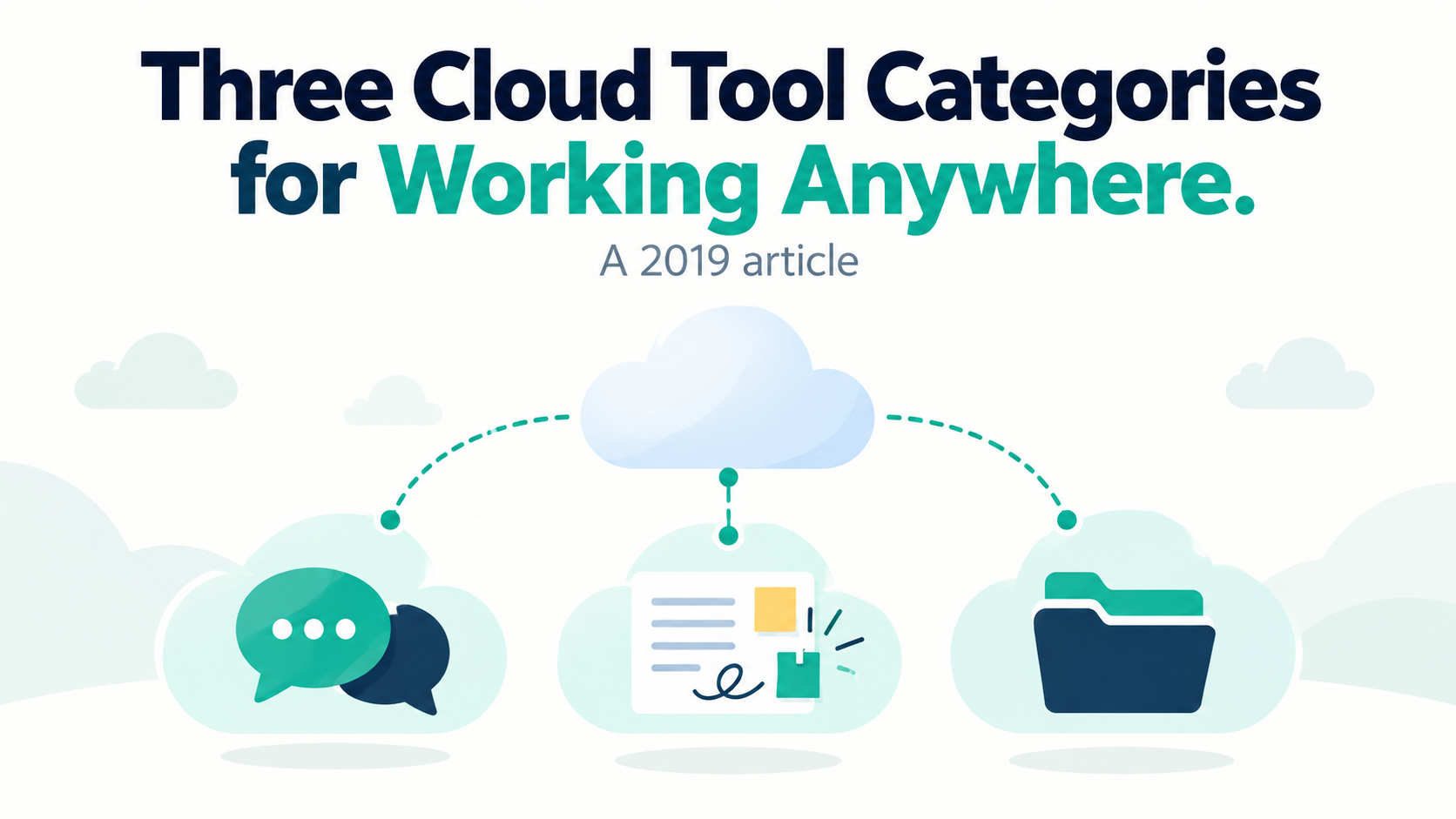
The tools fall into these categories:
- Communication
- Office and brainstorming
- Data storage
Let's look in detail.
Communication
Communication tools broadly divide into chat tools and meeting tools.
Chat Tools
Unlike email, these convenient messaging tools let you send requests quickly and notice notifications easily.
They include features supporting work communication such as task management and channels, so they cover all the little things you need.
*If that does not click, imagine the difference between LINE and email.
Commonly used tools include Chatwork and Slack.
 >>Chatwork | The cloud meeting room that accelerates business
 >>Do that work in Slack. | Slack
From the perspective of separating personal and business use, it is safer to avoid LINE and Facebook Messenger.
Meeting Tools
These let you hold online meetings as though you were in a meeting room.
Beyond high-quality video calls and audio, many people can share computer screens together.
*Chat is available too, but disappears when the meeting ends, so it is better to handle chat separately in a chat tool.
Commonly used tools include Zoom, Appear.in, Google Hangouts, but in usability, performance, and adoption, Zoom is the clear choice.
 >>Video Conferencing, Web Conferencing, Webinars, Screen Sharing – Zoom
Communication tools also include groupware such as Salesforce, CRM, marketing automation, and scheduling.
They are more complex and require extensive explanation, so I will omit them this time, but they are useful when the organization and workflows are clear and employees have adopted the tools.
If interested, try searching Google.
Office and Brainstorming
Office Tools
These tools fill the roles of word processing (Word), spreadsheets and lists (Excel), and presentations and diagrams (PowerPoint).
Tools include Google Docs (Docs, Sheets, Slides), Office 365, and Apple's tools (Pages, Numbers, Keynote), each with strengths and weaknesses.
From my personal experience, Excel is good for spreadsheets using many functions; Pages and Keynote for attractive documents and presentations; and Google Docs for everything else, I think.
 >>Google Docs – A free service for creating and editing documents online
Google Docs' service names are a little confusing, but I think the following understanding works.
- Google Docs: the overall package name (equivalent to Microsoft Office)
- Docs: word processing (equivalent to Word)
- Sheets: spreadsheets and lists (equivalent to Excel)
- Slides: presentations and diagrams (equivalent to PowerPoint)
I do not see many people using Office 365 or Apple's tools in the cloud, so if using them, combining them with the data storage tools below is safer.
Brainstorming Tools
These help you express ideas.
The options are mind maps, whiteboards, and wireframes.
Mind Maps
These let you understand the big picture, organize information, and see relationships between pieces of information at a glance.
Xmind, MindMeister, iMindMap are popular examples.
I use MindMeister to map out services and structure blog posts and presentations.

Whiteboards
These reproduce a meeting-room whiteboard in a browser or app.
Whiteboad Fox, Realtime Board, Limnu are popular examples.
I do not use them frequently, but Whiteboard Fox felt good.
Smartphones are too small to operate them comfortably, and a Mac's screen is not touch-sensitive, so I find little benefit. But they may be useful for people with a large tablet or touchscreen Windows PC.
Unlike simple handwriting, being able to see immediately who wrote something is another advantage.

>>Whiteboard Fox – Whiteboard Fox – Simple online whiteboard
Wireframes
These are blueprints or skeletons incorporating the components of a website when you create it.
When I was an employee, I created them in PowerPoint, but tools now let you create high-quality wireframes in the cloud.
 >>Online Mockup, Wireframe & UI Prototyping – Moqups
This is a major tangent, and sorry for seeming to overturn what I just said, but…
If your company is having an internal team or outside production company build a website that requires starting from wireframes, question that project's approach once.
There are now many fairly reliable design templates available, so although you may customize them, you do not necessarily need to create new wireframes to build a site.
Besides WordPress themes, Wix, Unbounce, Instapage, STUDIO, Peraichi let you decide the components while building in the browser.
Of course, this may not apply to an emerging internet startup building a web service that requires substantial development.
But for small businesses just starting with the web, the wireframing stage is generally unnecessary.
Data Storage
These services let you store and share data online.
Dropbox, Google Drive, Box are popular examples.
I use both Dropbox and Google Drive.
Data is often shared through Dropbox, so I recommend starting with Dropbox.

Google Drive actually shares storage with Gmail and Google Docs, so I recommend it to heavy users of those services.
 >>Google Drive – Cloud storage and backup for files including photos and documents
For companies and clients concerned about security, I recommend Box.
 >>Secure file sharing, storage, and collaboration | Box JP
Even if you do not share anything, I recommend using some kind of data storage service.
It serves as a backup and lets you view data from a smartphone app without your computer at hand.
How a Tool Feels Matters Too
This is another perspective on choosing tools, but personally I think usability and feel matter too.
I have used computers and the internet for nearly 20 years, and using a Mac or iPhone is enjoyable. Windows and Android do not feel good to use—I even find them painful.
So first, the best approach is to try the free versions as trials and check how they feel.
It affects productivity too, so I think you should be particular about that.
But a Tool Is a Tool
I have introduced many tools, but honestly, you do not need to feel you must use all of them to the fullest.
Sometimes writing normally with pen and paper generates ideas more easily or quickly.
So simply photographing paper you have scribbled on with your smartphone and sharing it through a chat tool can be enough instead of these tools.
Of course, they really prove their worth when many people view and edit, or when updates are frequent.
But tools are only tools.
I would appreciate you remembering that they are not efficient in every situation and that you should not let tools push you around.