
[No Specialist Knowledge Needed] How to Reduce the Slowdown Caused by Embedded YouTube Videos [Thumbnails]

From ACIDHOUSE, INC., this is Tetsuya Ashida.
Owners of small and medium businesses with websites sometimes ask me this question.

I hear that slow pages get a lower rating from Google, and above all I want to keep visitors from leaving. How can I make them lighter?
WordPress Tends to Become Slow
That is our starting point.
This may not be a technically precise explanation, but websites built with WordPress fetch their displayed information from a database each time someone visits, which inevitably makes them slower.
That means we want to avoid other factors that add to the load, and embedded YouTube videos are an obvious source of slowness, so we want to fix that quickly.
Using too many plugins is another reason a WordPress CMS may be slow. Bear in mind that in some cases it is better to investigate another cause rather than focus on embedded YouTube videos.
Based on the article below, embedding a video player in your site may actually be advantageous. Even a link to a video seems likely to be recognized by Google, but embedding feels more crawler-friendly.
‘If an article contains video, it is 53 times more likely to appear on the first page of search results than one without video.’
According to Forrester Research, you are 53 times more likely to appear on Google page one if you have a video on your website.
A YouTube Thumbnail and Link Will Do
 There are two ways to solve this.
- Rewrite the JavaScript or CSS
- Get the thumbnail image and place it beside a text link
Rewriting JavaScript or CSS is not very difficult from an engineer's or coder's perspective, but people without a technical background should avoid it.
So this time I will cover the latter approach.
How to Get a YouTube Thumbnail
Just enter the following URL in your browser.
http://img.youtube.com/vi/VIDEO_ID/FILENAME.jpg
So find the video ID and image filename and insert them.
How to Find the Video ID
You can find it in the address of the YouTube video in question.
It has the form https://www.youtube.com/watch?v=VIDEO_ID, so simply extract the characters following ‘watch?v=’.
For example, this video's URL is https://www.youtube.com/watch?v=xPKs0_G0OXE, so its video ID is ‘xPKs0_G0OXE’.
How to Find the Image Filename
YouTube's specifications determine the image filenames.

⇒https://img.youtube.com/vi/xPKs0_G0OXE/1.jpg

⇒https://img.youtube.com/vi/xPKs0_G0OXE/2.jpg

⇒https://img.youtube.com/vi/xPKs0_G0OXE/3.jpg

⇒https://img.youtube.com/vi/xPKs0_G0OXE/mqdefault.jpg

⇒https://img.youtube.com/vi/xPKs0_G0OXE/hqdefault.jpg

⇒https://img.youtube.com/vi/xPKs0_G0OXE/0.jpg
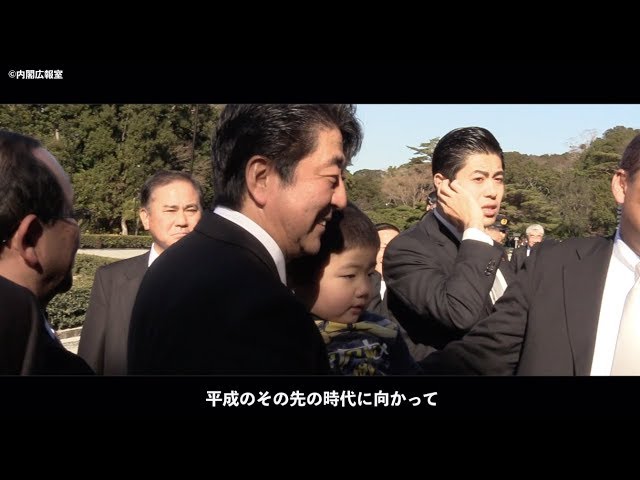
⇒https://img.youtube.com/vi/xPKs0_G0OXE/sddefault.jpg
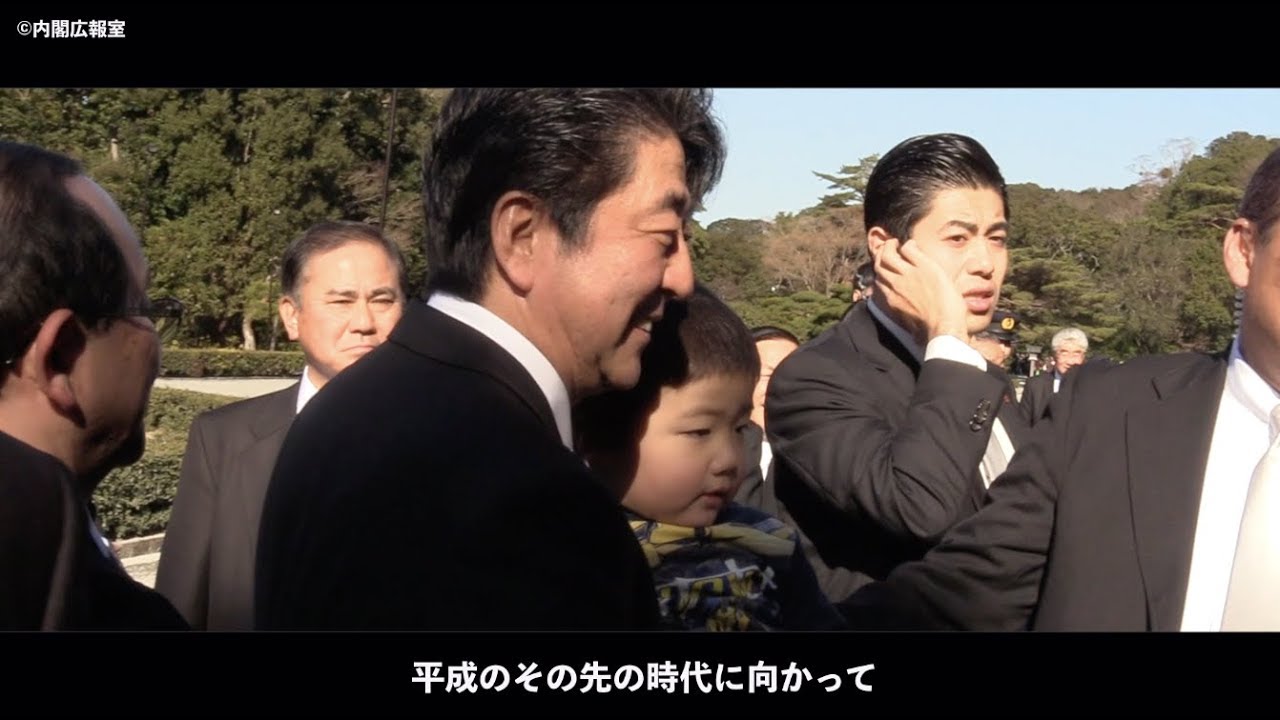
Click an image to check its actual size.
⇒https://img.youtube.com/vi/xPKs0_G0OXE/maxresdefault.jpg
You now have the thumbnail image.
The Video ID Alone Also Works
I found a tool that turns the procedure above into a script and locates images using only the video ID.
Using this should be even quicker.

▶RE13B.net YouTube Thumbnail Image Retrieval Script
Finishing Up
As for which thumbnail image to use, I think ‘640×480’, which is close to an embedded YouTube player, is a good choice (I think linking the image itself is optional).
For the text link, why not use the video's title while making clear that the link goes to YouTube?
[YouTube] Prime Minister Abe's New Year Press Conference—January 4, 2019
This may not be the best possible approach, but please try it as one option.